
How to Change the Bluetooth Broadcast Name?
Important Notes Before You Begin
1. This tool can only be used on a Windows PC running Windows 10 or later.
2. A Dropbox account is required to download the software files.
3. Keep the blafili B3 and your computer connected to a stable power supply throughout the process. Interrupting the power or USB connection may cause the device to stop working properly.
4. Please follow Steps 3 and 6 carefully. The QCC Tool files must be copied into the BlueSuite installation folder before QCC_Tool.exe is opened.
Step 1: Download the Required Files
Sign in to your Dropbox account and download the following three ZIP files:
BlueSuite.WIN.3.3 Installer_3.3.16.1687
Download BlueSuite.WIN.3.3 Installer_3.3.16.1687 (ZIP)
QCC_Tool_v2.3.1
Download QCC_Tool_v2.3.1 (ZIP)
qcc_usbdbg_v1.1
Download qcc_usbdbg_v1.1 (ZIP)
Extract all three ZIP files before continuing.
The executable files for the BlueSuite installer and USB debug driver can be opened directly from their extracted folders.
However, do not run QCC_Tool.exe directly from the extracted QCC_Tool_v2.3.1 folder. Its files must first be copied into the BlueSuite installation folder, as explained in Step 3.
Step 2: Install BlueSuite
Extract:
BlueSuite.WIN.3.3 Installer_3.3.16.1687.zip
Open the extracted folder and run:
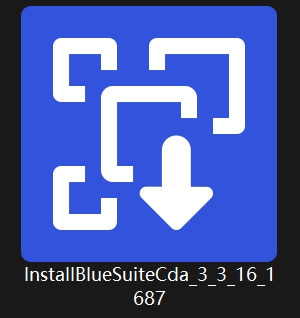
InstallBlueSuiteCda_3_3_16_1687.exe
Complete the installation using the default settings.
Step 3: Copy the QCC Tool Files into the BlueSuite Installation Folder
Extract:
QCC_Tool_v2.3.1.zip
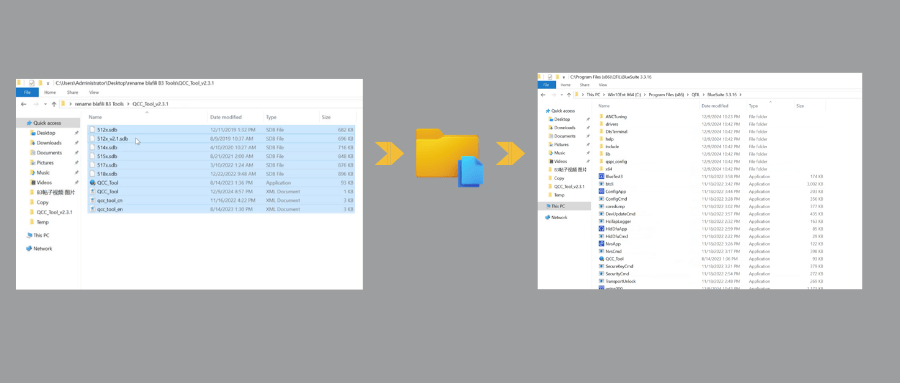
Open the extracted QCC_Tool_v2.3.1 folder, then select and copy all files and folders inside it.
Next, open the following BlueSuite installation folder:
C:\Program Files (x86)\QTIL\BlueSuite 3.3.16
Paste all copied QCC Tool files directly into this folder.
Important: Do not copy only the QCC_Tool_v2.3.1 folder itself. Open the folder and copy all of its contents into the BlueSuite installation folder.
Step 4: Connect the blafili B3
Connect the blafili B3 to your Windows PC using the supplied USB cable.
Keep the USB connection stable until the entire setup process is complete.

Step 5: Install the USB Debug Driver
Extract:
qcc_usbdbg_v1.1.zip
Open the extracted folder and run:
QCC_USBDBG.exe
Follow the on-screen instructions to complete the driver installation.
Step 6: Open QCC_Tool.exe from the BlueSuite Installation Folder
Open the following folder:
C:\Program Files (x86)\QTIL\BlueSuite 3.3.16
Find and run:
QCC_Tool.exe
Important: You must open QCC_Tool.exe from the BlueSuite installation folder.
Do not open QCC_Tool.exe directly from the extracted QCC_Tool_v2.3.1 folder. The program may not work correctly unless all QCC Tool files have first been copied into the BlueSuite installation folder.
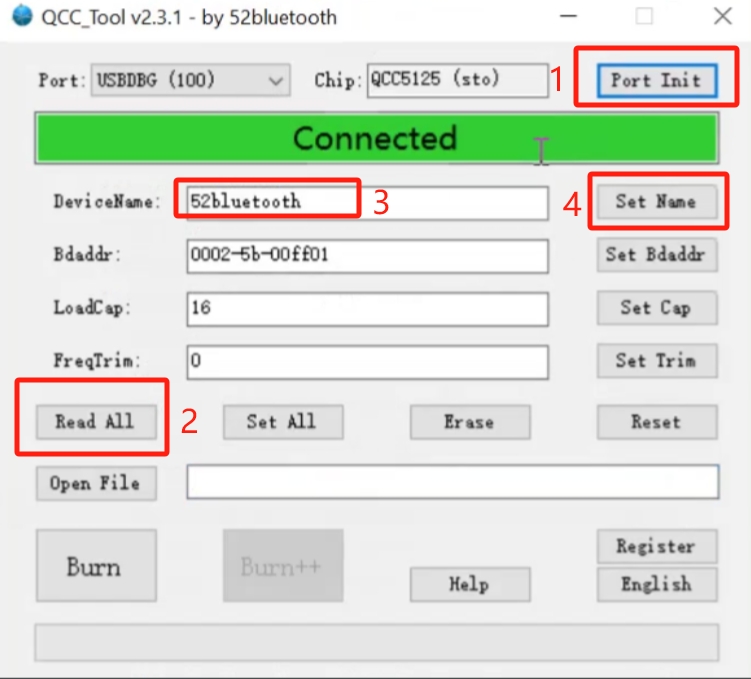
Step 7: Change the Bluetooth Name
Follow the tutorial video and complete the steps in this order:
1. Click Port Init.
2. Click Read All.
3. Enter your new Bluetooth broadcast name.
4. Click Set Name.
Do not click any of the following buttons:
- Set Bdaddr
- Set Cap
- Set Trim
- Set All
- Erase
- Reset
- Burn
Clicking these buttons may change important device settings or cause the device to stop working correctly.
Setup Complete
The Bluetooth broadcast name has now been changed.
After clicking Set Name, search for the new Bluetooth name on your phone, tablet, or computer. There is no need to restart the blafili B3.
Tutorial Video
Online Bluetooth Name & Passcode Tool
A browser-based tool that renames a blafili receiver and sets its pairing passcode — no Windows utilities — is on the roadmap. Until it ships: note the name or 4-digit passcode you want when ordering and we ship the receiver pre-configured, or follow the tutorial on this page to change it yourself.