
For blafili B3 only. Follow this guide to set a custom 4-digit Bluetooth pairing code.
Quick answer: You can set a custom pairing passcode on blafili B3 — note the 4-digit code you want when ordering and we pre-configure it before shipping, or follow the tutorial below to change it yourself. The passcode is what your phone asks for when pairing, so only people who know it can connect.
How to set a Bluetooth Pairing Code on blafili B3?
Set or change the 4-digit code used when pairing a phone or tablet with your B3.
Before You Begin
Tips: 1. It can ONLY be run on Windows PC( >= Windows 10 ); 2. The process needs to keep the power supply stable, otherwise it will result in a crash.
• A blafili B3 receiver
• A Windows PC running Windows 10 or later
• A USB data cable, such as the cable included with your B3
• Your preferred 4-digit pairing code
This setup requires Windows software. You cannot change the code directly from your phone’s Bluetooth settings.
Step 1 :
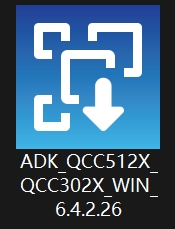
Download ADK_QCC512x_WIN_6_4_Installer_6_4_2_26.zip
(You can click on the icon for zip download.)
ADK_QCC512x_WIN_6_4_Installer_6_4_2_26
Step 2 :
Extract the ZIP file ADK_QCC512x_WIN_6_4_Installer_6_4_2_26.zip
Then double-click the installer “ADK_QCC512X_QCC302X_WIN_6.4.2.26.exe”.
Step 3 :
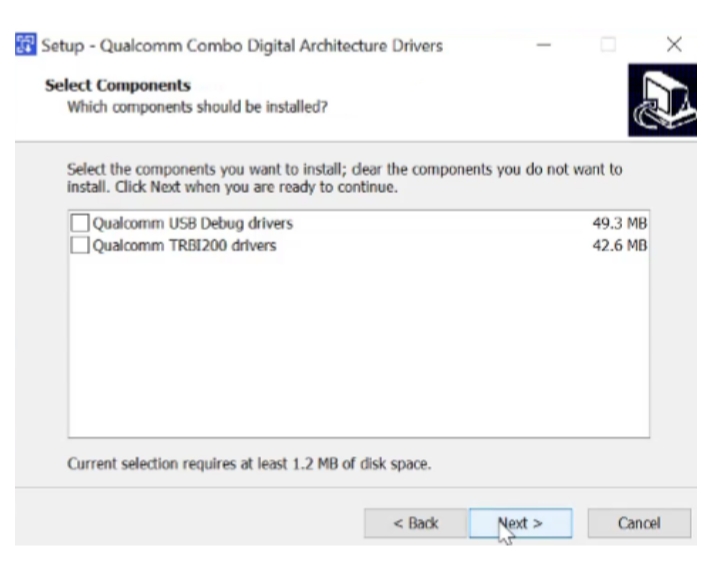
Select all components, then click Next.
Step 4:
Then connect the blafili B3 to your Windows PC with the included USB cable.

Step 5 :
Unzip qcc_usbdbg_v1.1.zip
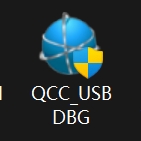
then running QCC_USBDBG.exe
Step 6 :
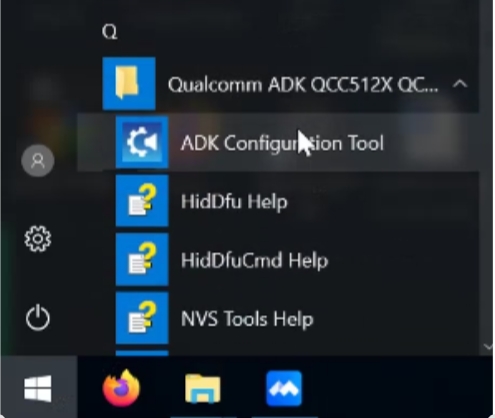
Find “ADK Configuration Tool” in Start and click it.
Step 7 :
Choose blafili b3
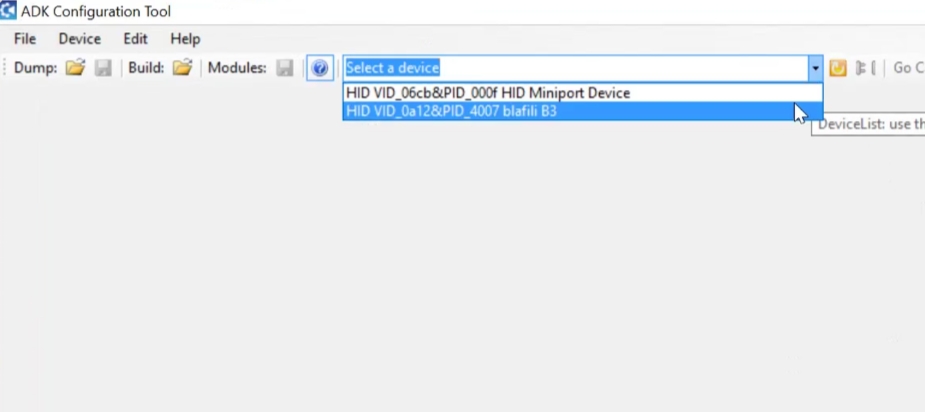
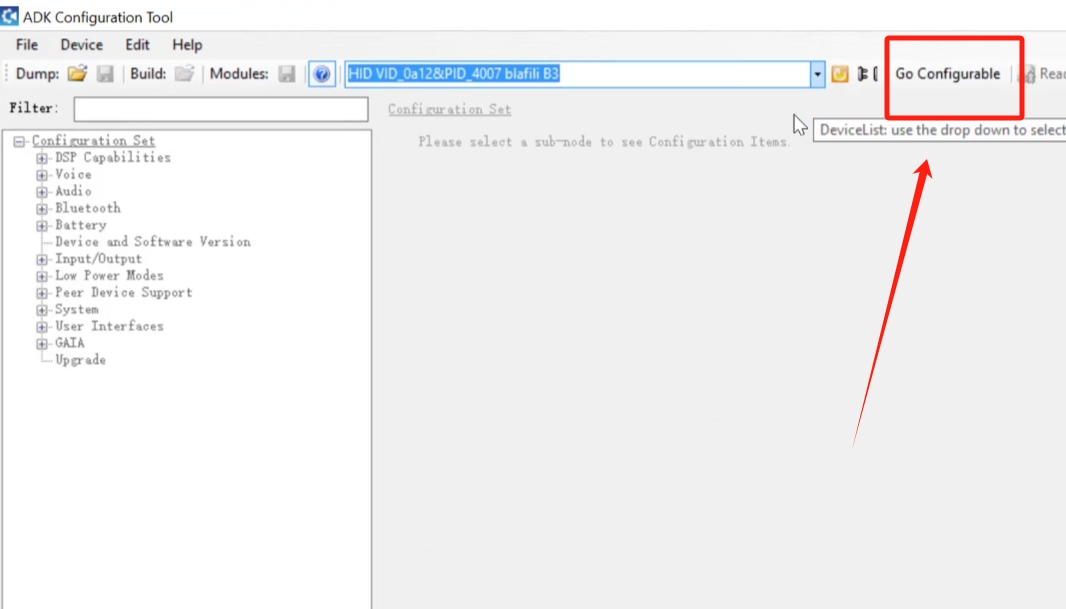
Step 8 :
Click
“Go Configurable” & “Read Device“.
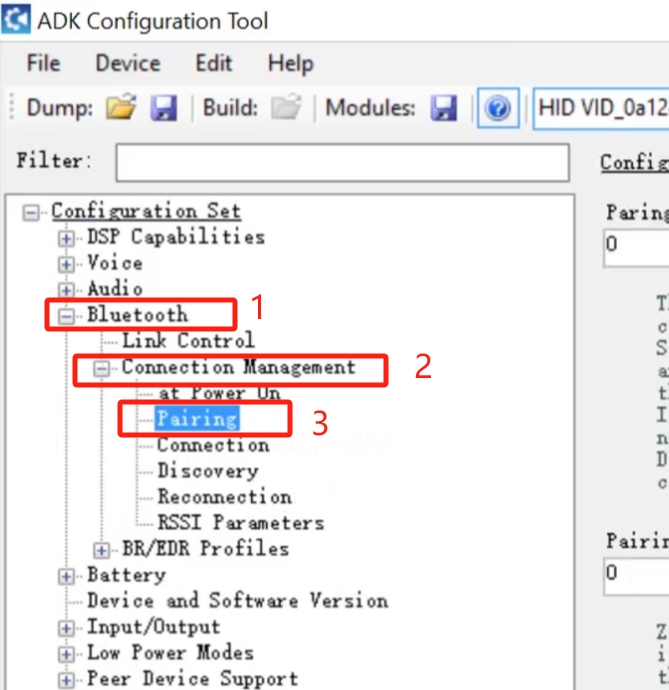
Step 9 :
Click Bluetooth > Connection Management > Pairing
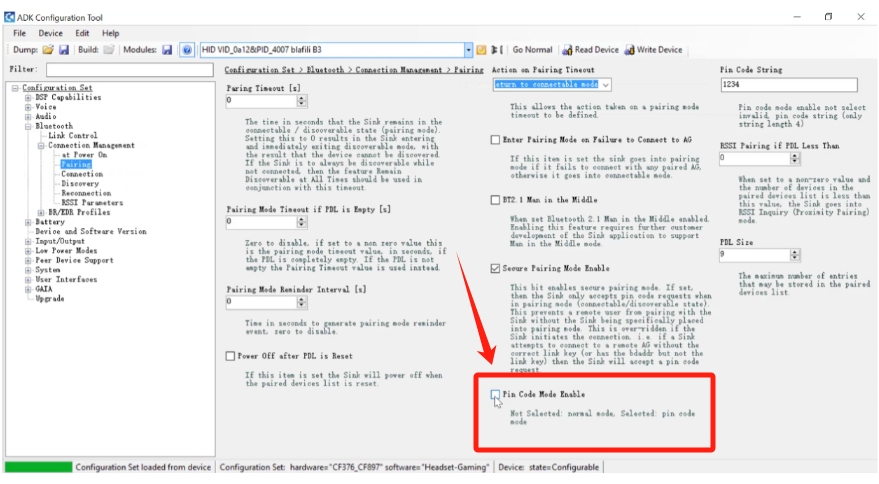
Step 10 :
Check Box
“Pin Code Mode Enable”.
Want to turn off the pairing code instead?
Uncheck “Pin Code Mode Enable”, then click “Write Device” to save. You can skip Step 11. Your B3 will no longer require a code for new Bluetooth pairings.
Step 11 :
Enter your 4-digit pairing code, then click “Write Device“.
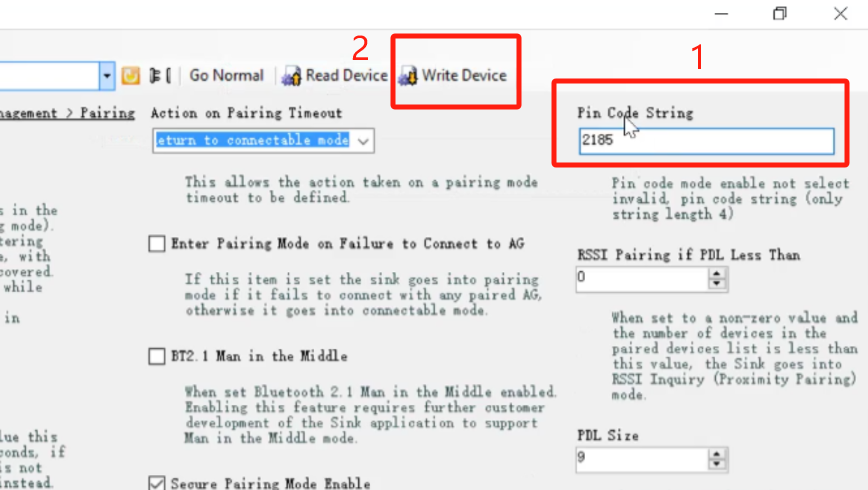
Now, your Bluetooth Passcode setup is over.