


Bluetooth technology has revolutionized how we connect devices—until a hacker intercepts your wireless speaker or steals sensitive data from your smartphone. If you’ve ever wondered how to add password to Bluetooth device effectively, you’re in the right place. As a tech security specialist with 10+ years of hands-on experience, I’ll walk you through foolproof methods to lock down your gadgets, avoid common pitfalls, and choose devices that prioritize your safety.
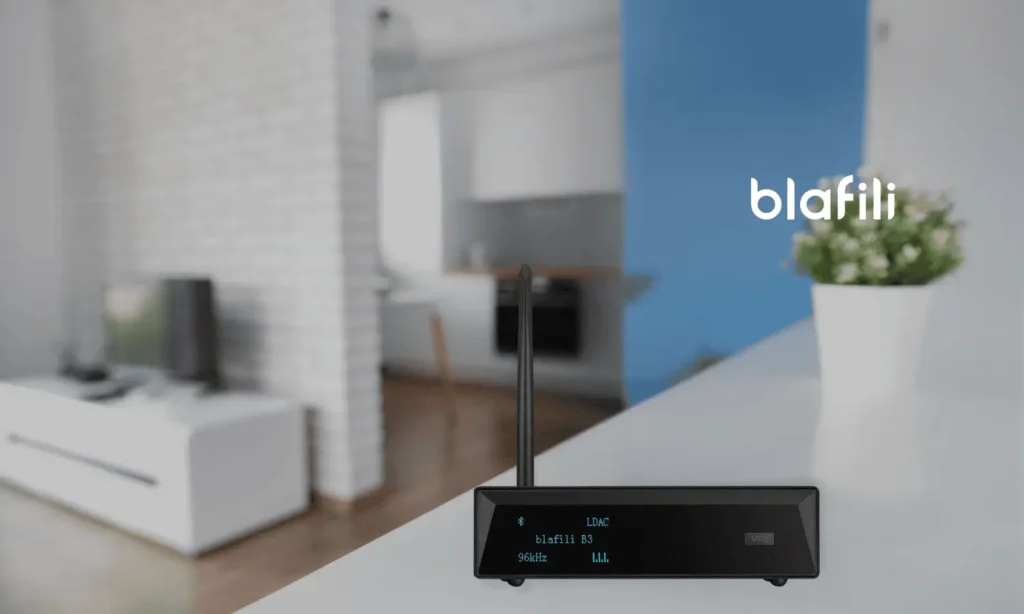
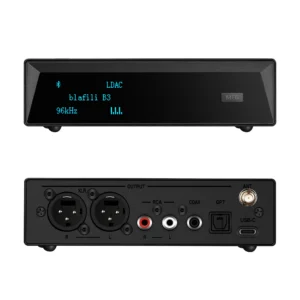
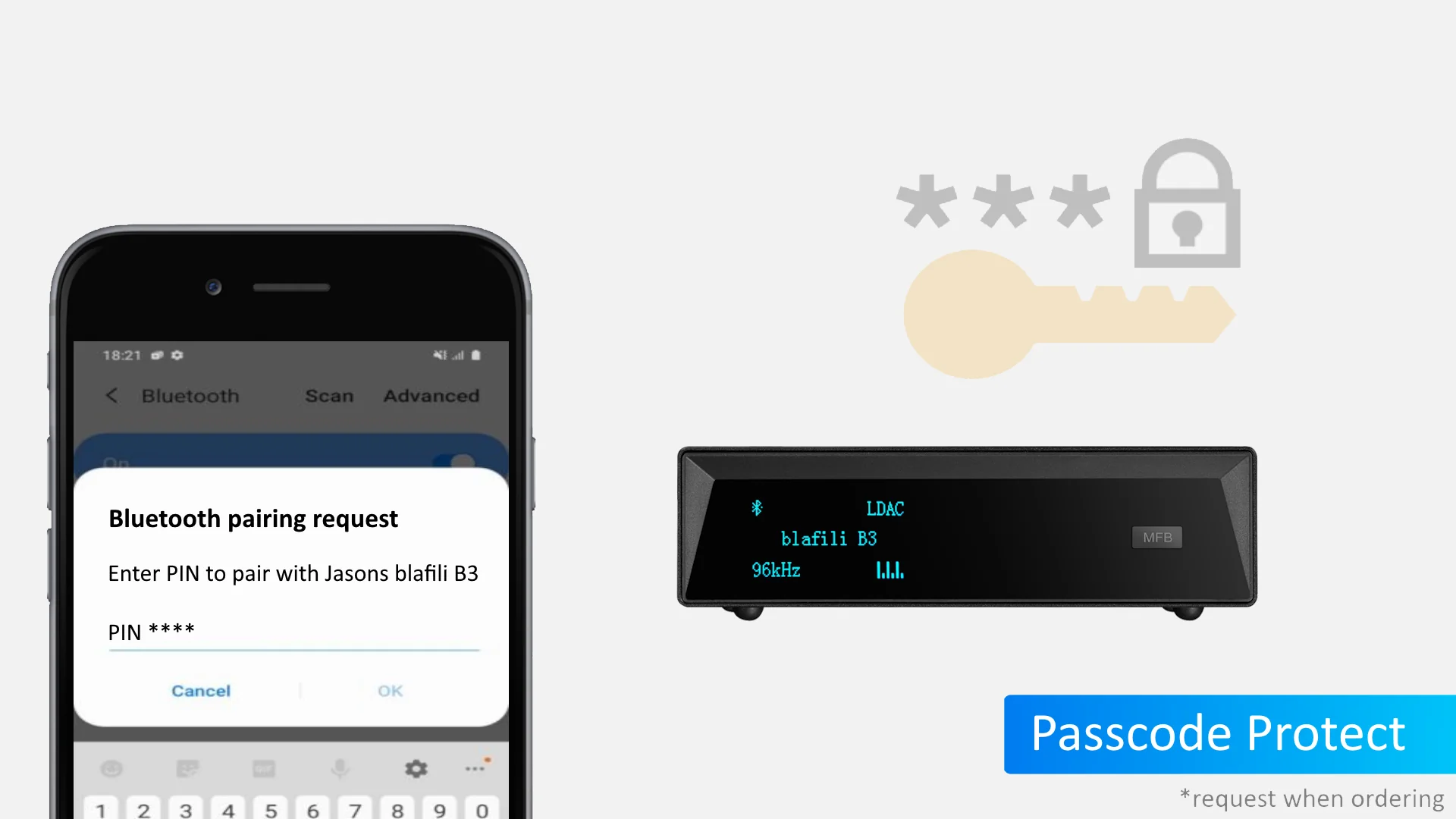
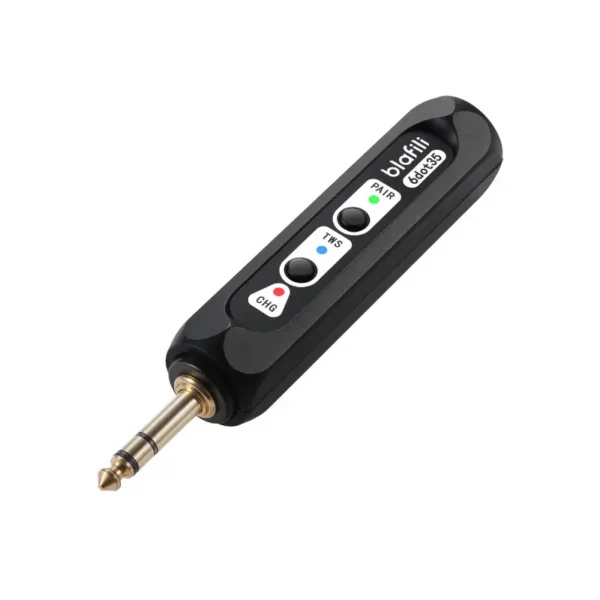
If you buy a blafili Bluetooth product, you can note that you need a preset password when placing an order, and we will help you set the Bluetooth password in advance before shipping.
Why Adding a Password to Your Bluetooth Device is Non-Negotiable for Security
Picture this: You’re streaming music at a café, and a stranger hijacks your Bluetooth speaker to blast embarrassing audio. Worse yet, cybercriminals could exploit unsecured connections to access your files or install malware. Bluetooth encryption is your first line of defense.
Most devices use a passkey (usually a 4-6 digit PIN) during pairing. However, many users skip this step or rely on default codes like “0000” or “1234,” leaving doors wide open for attacks. According to a 2025 report by Cybersecurity Ventures, 63% of Bluetooth-related breaches stem from weak or missing passwords.

The Ultimate 5-Step Guide to Add Password to Bluetooth Device
Follow these steps to secure any Bluetooth-enabled gadget:
- Enable Discovery Mode: Go to your device’s Bluetooth settings and turn on visibility.
- Initiate Pairing: Select the target device from your list.
- Enter a Custom Passkey: Replace default codes with a unique 8-digit alphanumeric password.
- Authenticate Both Devices: Confirm the same passkey on both gadgets.
- Test the Connection: Send a file or play audio to verify security.
Pro Tip: For devices like wireless headphones, check the manual for auto-lock features that require passwords after periods of inactivity.

Bluetooth Security Showdown: Password Protection vs. Alternative Methods
| Method | Security Level | Ease of Use | Best For |
|---|---|---|---|
| Password/PIN | High | Moderate | Everyday devices |
| Biometric Authentication | Very High | Complex | Premium smartphones |
| QR Code Pairing | Medium | Easy | Smart home systems |
| NFC Tap-to-Pair | Low | Very Easy | Quick connections |
While biometric authentication (e.g., fingerprint scanning) offers top-tier security, passwords remain the most universally compatible option.

FAQs
Can I use Bluetooth without adding a password?
Yes, but it’s like leaving your front door unlocked. Hackers can exploit “open” connections within a 30-meter range.
Why does my Bluetooth device reject strong passwords?
Some older gadgets only accept numeric PINs. Check your device’s manual for supported formats.
How often should I update my Bluetooth password?
Aim for every 3–6 months, especially if you connect to public networks frequently.
Conclusion
Learning how to add password to Bluetooth device isn’t just a tech skill—it’s a necessity in our wirelessly driven world. From choosing crack-resistant passkeys to troubleshooting failed setups, you’re now equipped to lock down your devices like a pro. Remember: A few minutes of setup today can save you from a security nightmare tomorrow.
Got more questions? Drop them below—I’ll tackle them personally!
Online Bluetooth Name & Passcode Tool
A browser-based tool that renames any blafili receiver and sets a pairing passcode on the B3 — no Windows utilities — is on the roadmap. Until it ships: note the name or 4-digit passcode you want when ordering and we ship the receiver pre-configured, or follow the tutorial on this page to change it yourself.
On sale products
-
Sale!
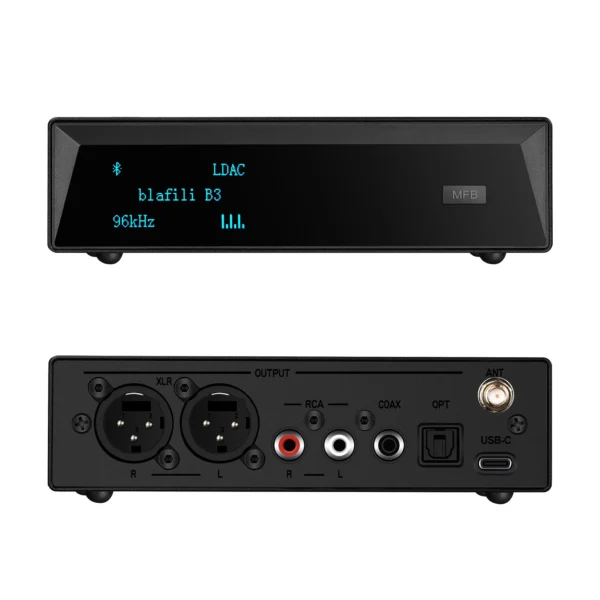 Original price was: $149.00.$109.00Current price is: $109.00.
Add to cart
Original price was: $149.00.$109.00Current price is: $109.00.
Add to cart
-
Sale!
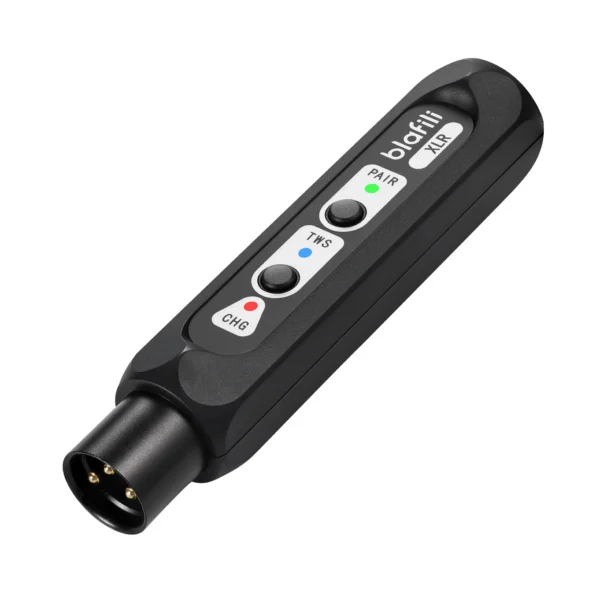 Original price was: $59.99.$40.99Current price is: $40.99.
Add to cart
Original price was: $59.99.$40.99Current price is: $40.99.
Add to cart
-
Sale!
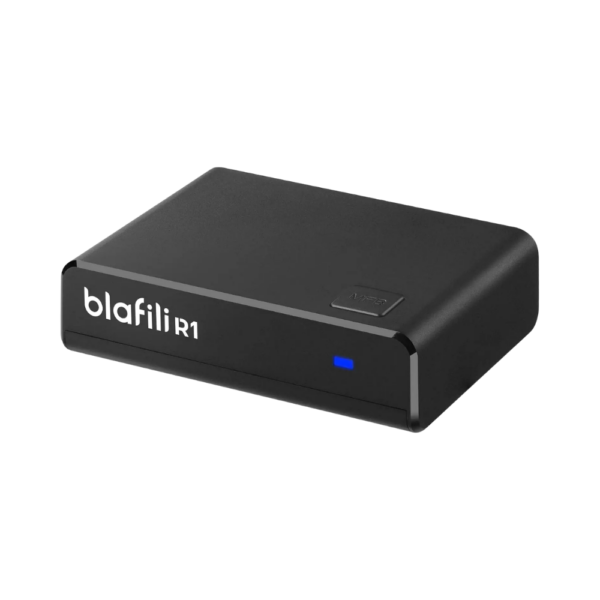 Original price was: $29.99.$21.99Current price is: $21.99.
Add to cart
Original price was: $29.99.$21.99Current price is: $21.99.
Add to cart
-
Sale!
 Original price was: $59.99.$44.99Current price is: $44.99.
Add to cart
Original price was: $59.99.$44.99Current price is: $44.99.
Add to cart