


Let’s face it: the world of tech is constantly evolving, and it’s the small conveniences that tend to stick around. One of the most significant shifts in audio technology has been the move from wired connections to wireless ones. Bluetooth, in particular, has become the go-to option for enjoying audio without being tethered to your devices.
But here’s the thing: many audio devices, like older sound systems, media players, and home theater gear, still use optical audio outputs. And that’s where the need to convert “audio optical to Bluetooth” comes into play. If you’ve ever wondered how to bridge this gap and enjoy both wired and wireless audio at once, this article is for you. This guide walks through how to convert optical audio to Bluetooth, what gear actually matters, and the pitfalls that leave most people stuck.

What Exactly Is Optical Audio?
Before we jump into the Bluetooth conversion process, let’s quickly break down what we mean by “optical audio.” In simple terms, optical audio refers to a type of audio signal that’s transmitted through light, often through an optical fiber cable. This is commonly used in home theater systems, soundbars, and some gaming consoles.
Why optical? Because it allows for the transmission of high-fidelity sound without the risk of electromagnetic interference (EMI), which is often a problem with traditional copper cables. It’s a strong choice for anyone who wants clean sound, whether that’s a late-night series or your favorite playlist at full volume.
But as technology progresses, wireless options like Bluetooth have taken over in many aspects of our digital lives. So, how do you make the leap from optical to Bluetooth without losing out on sound quality? Glad you asked!
Optical, Coaxial, or RCA: What’s the Difference?
Sources with digital outputs usually offer optical and coaxial side by side, and plenty of older gear also carries RCA analog jacks. The three are not interchangeable, and which one you have decides what kind of Bluetooth adapter will work.
Optical (TOSLINK) sends the signal as light through a glass or plastic fiber, which keeps the connection electrically isolated and free of ground-loop hum. Coaxial carries the same S/PDIF data as an electrical signal over a 75-ohm copper cable, terminated in a snug RCA plug. RCA analog is different again: the decoding has already happened, so it carries a plain stereo signal straight into an amplifier.
Here’s how the three compare. Length limits are commonly cited figures rather than hard rules, since cable quality and the gear at each end matter:
| Connection | Signal type | Typical use | Practical length limit |
|---|---|---|---|
| Optical (TOSLINK) | Digital S/PDIF as light over fiber | Source to DAC, soundbar, or transmitter | Commonly cited up to 10 m; short runs are safest |
| Coaxial (RCA S/PDIF) | Digital S/PDIF as an electrical signal | CD transports, DACs, AV receivers | Commonly cited up to 15 m with proper 75-ohm cable |
| RCA analog | Decoded stereo analog | Line-level gear into amplifiers | Usually 1 to 2 m; longer runs can pick up hum |
One detail that matters for the rest of this guide: optical and coaxial both carry PCM stereo and Dolby Digital bitstreams, but many Bluetooth transmitters decode PCM stereo only. Keep that thought for the troubleshooting section.
Which Direction Do You Need: Optical to Bluetooth, or Bluetooth to Optical?
Before you buy anything, get the direction straight, because the two phrases describe opposite jobs. Optical to Bluetooth means taking the optical output of a source you already own and sending it wirelessly to headphones or speakers; that’s this page’s direction. Bluetooth to optical means receiving audio from a phone or tablet and feeding it into the optical or coaxial input of a DAC, soundbar, or amplifier.
The receive direction has gear of its own, and our Bluetooth audio receiver guide covers it in depth. The short version looks like this:
| Direction | What you buy | Example gear |
|---|---|---|
| Optical out of a source, wireless into your ears | Bluetooth transmitter with a TOSLINK input | Any transmitter with a genuine optical input; verify codec support on both ends |
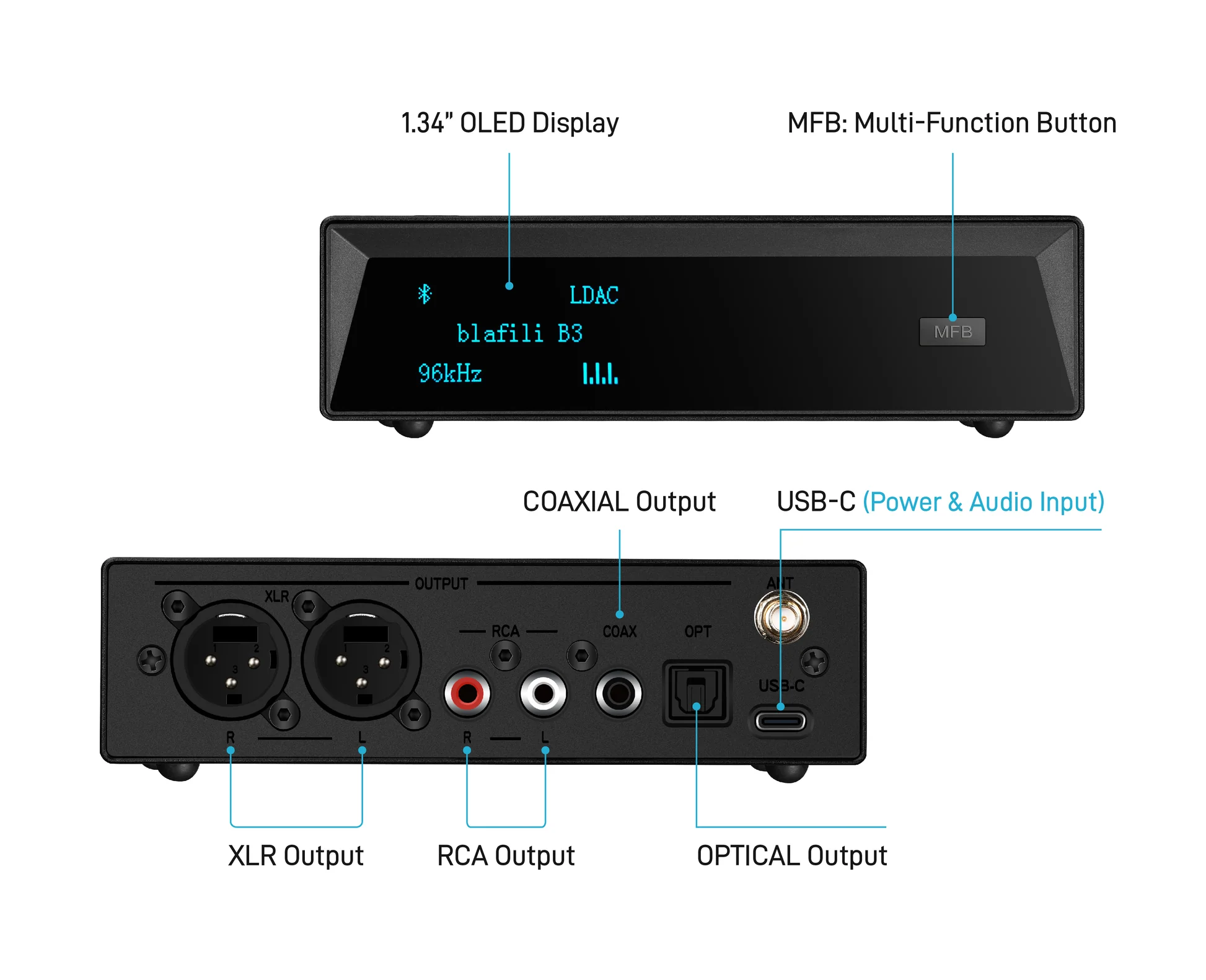
| Bluetooth in from a phone, optical or coaxial out to your system | Bluetooth receiver with digital outputs | blafili B3 Bluetooth Music Receiver ($109), with optical and coaxial outputs |
blafili’s own lineup reflects the split. The B3 receives Bluetooth and outputs it through balanced XLR, RCA, optical, and coaxial, so it handles the second direction (our XLR Bluetooth receiver guide covers balanced hookups). Our transmitters, the T6.35 (1/4-inch plug) and Bicast (XLR and USB-C), connect to analog outputs rather than optical, so for this page’s job you’ll be shopping for a transmitter from any brand that lists a TOSLINK input.

Why Convert Audio Optical to Bluetooth?
You might be wondering: “Why should I bother converting my optical audio to Bluetooth when my optical setup works just fine?” Well, here are some compelling reasons:
- Eliminate Cable Clutter: Say goodbye to the mess of wires snaking across your living room floor. Converting to Bluetooth means less hassle with tangled cables and more freedom to place your speakers or sound system wherever you want.
- Wireless Convenience: Whether you’re connecting to a wireless headset, Bluetooth speakers, or headphones, Bluetooth offers a simple, hassle-free connection. No more fumbling with cables just to get sound.
- Better Compatibility: Many modern devices (smartphones, laptops, tablets) are built around Bluetooth. If you’re not quite ready to let go of your trusty optical system, Bluetooth lets you connect it to newer devices without issue.
- Portability: Want to take your sound system on the go? With Bluetooth, you can pair your optical setup with portable Bluetooth speakers or headsets, which is handy for outdoor gatherings or gaming sessions away from the desk.
There are also situations where converting optical to Bluetooth solves a specific problem rather than just tidying cables. A common one is keeping a good source where it is while the speakers move. Your CD transport or media player stays in the rack, its optical output feeds a small transmitter, and the music follows you to the kitchen, the patio, or a pair of headphones across the room.
Late-night listening is another. Instead of muting the system or waking the house, route the optical output into a transmitter and listen on headphones at low volume with the amplifier off and the room quiet.
Repurposing older gear rounds out the list. A well-built source from a decade ago keeps serving once its digital output goes wireless, and the same idea applies to entire stereos, as our guide to adding Bluetooth to an old stereo shows.
How to Convert Audio Optical to Bluetooth: A Step-by-Step Guide
Alright, now we’re getting to the fun part: actually making the conversion happen. Don’t worry, it’s easier than it sounds, and we’ll walk through it step by step.
Step 1: Gather Your Gear
To convert your optical audio to Bluetooth, you’ll need a few pieces of equipment:
- Bluetooth Transmitter: This is the key to turning your optical audio signal into Bluetooth. It plugs into your optical output and wirelessly transmits the audio to your Bluetooth devices. Look for a model with a TOSLINK input and, if you watch video, aptX Low Latency support.
- Optical Cable: You’ll need an optical cable (sometimes called a TOSLINK cable) to connect your audio source to the Bluetooth transmitter.
- Bluetooth Receiver (Optional): If your speakers have no Bluetooth and no way to add it, a Bluetooth receiver can take the wireless signal back down to an analog line input. Our guide to connecting a Bluetooth device to an amplifier covers the wiring.
Step 2: Connect Your Optical Audio Source to the Bluetooth Transmitter
Here’s where the magic happens. Start by removing the small protective caps from the tips of the optical cable if it shipped with them, then plug one end into the optical output of your source device. Plug the other end into the optical input of the Bluetooth transmitter. Most transmitters have a clear, labeled optical input to make this process foolproof.
Step 3: Pair the Bluetooth Transmitter with Your Bluetooth Devices
Now that your audio is wired up, it’s time to make the wireless connection. Power on your Bluetooth transmitter and put it into pairing mode, then make sure your Bluetooth headphones or speakers are in pairing mode too. If a second box is involved, such as a receiver feeding powered speakers, it needs to be discoverable as well.
Once they detect each other, the transmitter will send the optical audio signal to your Bluetooth device. Within seconds, you will hear clean stereo audio with no wires in the way.
Step 4: Test and Adjust the Sound
After pairing everything, test the audio. Check for delays or audio dropouts; even with a good-quality Bluetooth transmitter, a short test run is worth the minute it takes. You might need to tweak the volume levels on your transmitter or adjust the settings on your Bluetooth speaker or headphones for the sound you want.

How to Choose a Transmitter for Converting Audio Optical to Bluetooth
You’ve got the process down, so what separates a transmitter that just works from one that causes headaches? A short checklist covers nearly all of it:
- TOSLINK input: Check this first. Some compact transmitters accept only 3.5 mm analog, and the listing or manual should say “optical” or “TOSLINK” explicitly.
- PCM stereo handling: Most Bluetooth transmitters accept two-channel PCM, so make sure your source can be set to output PCM instead of a Dolby or DTS bitstream.
- Codec match on both ends: aptX Low Latency on the transmitter only helps if your headphones or speaker support it too; otherwise the link falls back to SBC. For music, aptX HD or LDAC are the higher-bandwidth choices.
- Power and placement: Most transmitters run on USB power, so plan for an outlet or USB port near the source.
One honest note from us: blafili’s current transmitters, the T6.35 (a 1/4-inch plug model) and the Bicast (XLR and USB-C), connect to analog outputs, so they don’t fit an optical source. Any brand’s transmitter with a genuine TOSLINK input will do the job; what separates the good ones is the codec list, so verify it on both ends before buying.
Troubleshooting: Common Issues When Converting Optical to Bluetooth
While the process is usually straightforward, you might run into a few issues along the way. Here are the most common problems and how to solve them:
No Sound Output
- Double-check that the Bluetooth transmitter is properly connected to the optical input, and that both devices are powered on and paired correctly.
- Ensure the source device is set to the correct output; some sources keep playing through their own speakers even when an optical cable is plugged in.
- Confirm the cable is seated: remove the tiny protective caps, match the connector’s shape to the port, and push firmly until it stops.
Why Won’t Dolby or DTS Audio Play Over Bluetooth?
If the connection works but movies stay silent, the bitstream is the usual culprit. Many Bluetooth transmitters accept two-channel PCM only, so a Dolby Digital or DTS bitstream arrives as data they cannot decode. Open your source device’s audio settings and set the digital output to PCM (sometimes labeled “PCM Stereo”). Surround content then folds down to stereo, which is what a Bluetooth link carries anyway.
Audio Delay or Sync Issues
- Bluetooth adds a delay to every link. Over the default SBC codec it typically measures around 200-300 ms, which reads as lips moving ahead of the sound.
- Running aptX Low Latency on both the transmitter and the headphones or speaker brings delay down to near 40 ms, a level most viewers stop noticing. Our aptX Low Latency explainer shows how to confirm both ends support it.
- Stuck with SBC? Some source devices let you delay the video to match the audio, which restores sync for movie nights.
Bluetooth Pairing Problems
- If your devices aren’t pairing, make sure both the transmitter and receiver are in pairing mode. You might need to reset both devices and try again.
- Keep in mind that some devices have connection limits, so make sure the Bluetooth range isn’t being exceeded.

Conclusion
Converting audio optical to Bluetooth comes down to a handful of decisions made in the right order. Run through this list and the setup tends to work on the first try:
- Confirm the direction: source optical out to wireless headphones means a transmitter with a TOSLINK input; a phone into a DAC or soundbar means a receiver with digital outputs.
- Set the source to PCM: doing this before anything else prevents the most common “connected but silent” failure with Dolby or DTS content.
- Seat the cable properly: remove the protective caps and push the optical plug in firmly, then confirm pairing succeeded on both ends.
- Match codecs: aptX Low Latency on both ends keeps delay near 40 ms; without it, expect roughly 200-300 ms over SBC.
- Test with a dialogue scene: check lip sync and volume before you call the job done.
That’s the whole job: one cable, one transmitter, one pairing step. Once it’s set, your source keeps its digital output and your listening moves wherever you do.